



Introduction
A laptop battery is one of the most important components of any portable computer. Whether you use your laptop for work, study, gaming, or entertainment, good battery health ensures longer usage time and better overall performance. Over time, every rechargeable battery naturally loses capacity, but proper care can significantly slow this process.
In 2026, most laptops use lithium-ion or lithium-polymer batteries, which are designed to provide reliable performance for hundreds of charging cycles. By following a few simple habits, you can extend your battery’s lifespan, improve daily runtime, and reduce the need for early battery replacement.
This guide covers practical tips to help you keep your laptop battery in excellent condition.
Understand How Laptop Batteries Work
Modern laptops use rechargeable batteries that gradually wear out as they complete charging cycles. A charging cycle refers to using a total of 100% of the battery’s capacity, not necessarily in a single charge.
Battery lifespan depends on several factors, including:
- Charging habits
- Operating temperature
- Workload
- Display brightness
- Battery age
- Software optimization
Understanding these factors helps you make better decisions about battery care.
Avoid Extreme Heat
Heat is one of the biggest enemies of battery health.
High temperatures can accelerate battery wear and reduce its overall lifespan.
To minimize heat:
- Keep ventilation openings clear.
- Avoid placing the laptop on soft surfaces like beds or cushions.
- Use the laptop on a hard, flat surface.
- Clean air vents regularly.
- Consider using a laptop stand to improve airflow.
Keeping your laptop cool supports both battery health and system performance.
Adjust Screen Brightness
The display is one of the largest sources of battery consumption.
Reducing brightness to a comfortable level can noticeably increase battery runtime.
Most users can comfortably work with brightness between moderate levels depending on room lighting.
Enable Battery Saver Mode
Most modern operating systems include built-in battery-saving features.
Battery Saver typically:
- Reduces background activity
- Lowers screen brightness
- Limits unnecessary system processes
- Optimizes power consumption
Enable this mode whenever you are working away from a power outlet.
Disconnect Unused Devices
External devices continue to draw power even when not actively used.
Disconnect accessories such as:
- USB drives
- External hard drives
- Portable monitors
- USB hubs
- External keyboards
- Wireless receivers
Removing unused devices helps conserve battery power.
Close Unnecessary Applications
Running multiple applications simultaneously increases processor usage and battery consumption.
Close programs you are not actively using, especially:
- Video editors
- Multiple browser tabs
- Virtual machines
- Large background applications
Reducing system workload helps extend battery runtime.
Keep Software Updated
Manufacturers regularly release updates that improve power management and system efficiency.
Keep updated:
- Operating system
- BIOS or firmware
- Device drivers
- Battery management software
These updates often improve battery performance and compatibility.
Manage Startup Programs
Many applications launch automatically when the laptop starts.
Too many startup programs increase:
- CPU usage
- Memory usage
- Battery consumption
Disable unnecessary startup applications to improve efficiency.
Use Sleep Mode Wisely
If you are stepping away for a short period, Sleep Mode saves more battery than leaving the laptop fully active.
For longer periods of inactivity, consider shutting down the laptop completely.
Avoid Constant Full Discharges
Modern lithium-ion batteries perform best when they are not regularly drained to 0%.
Instead of waiting until the battery is completely empty, recharge it before it becomes critically low.
Maintaining moderate charge levels supports long-term battery health.
Avoid Keeping the Battery at 100% Constantly
Keeping a laptop plugged in continuously at full charge for extended periods may contribute to faster battery aging on some devices.
Many modern laptops include battery health features that limit charging automatically when plugged in for long periods.
If available, enable these battery optimization settings.
Reduce Background Activity
Many applications continue working even when not visible.
Examples include:
- Cloud synchronization
- Automatic updates
- Messaging applications
- File indexing
Limiting unnecessary background processes improves battery efficiency.
Turn Off Unused Wireless Features
Wi-Fi and Bluetooth consume power when enabled.
If you do not need them, temporarily disable:
- Bluetooth
- Wi-Fi (when offline)
- Mobile hotspot
- Wireless peripherals
Reducing wireless activity helps conserve battery life.
Choose an Efficient Power Plan
Most laptops offer multiple power profiles.
Common options include:
- Battery Saver
- Balanced
- High Performance
For everyday use on battery power, Balanced or Battery Saver modes generally provide the best balance between performance and battery life.
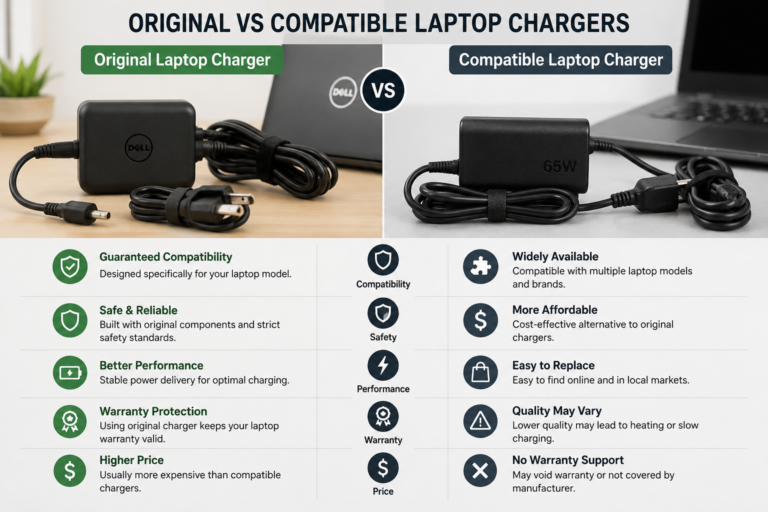
Use Original or Certified Chargers
Charging your laptop with a high-quality charger helps maintain battery health.
Choose:
- Original manufacturer chargers
- Certified replacement chargers
- Compatible USB-C Power Delivery chargers (when supported)
Avoid low-quality chargers that may deliver unstable power.
Store the Laptop Properly
If you will not use your laptop for an extended period:
- Store it in a cool, dry location.
- Avoid excessive humidity.
- Leave some charge in the battery rather than storing it completely empty.
Proper storage helps preserve long-term battery health.
Monitor Battery Health
Many laptops include battery health monitoring tools.
Regularly checking battery condition allows you to:
- Detect capacity loss
- Identify charging problems
- Plan battery replacement when necessary
Monitoring helps prevent unexpected battery failures.
Clean the Cooling System
Dust accumulation reduces cooling efficiency.
Periodically:
- Clean air vents.
- Remove dust from fans.
- Keep airflow unobstructed.
Better cooling helps protect both internal components and the battery.
Common Battery Myths
Myth 1: You Must Fully Discharge the Battery Every Time
False.
Modern lithium-ion batteries do not require regular full discharges.
Myth 2: Leaving the Charger Plugged In Always Damages the Battery
Not entirely.
Many modern laptops include intelligent charging systems that reduce stress on the battery during long charging periods.
Myth 3: Closing Applications Does Not Affect Battery Life
Incorrect.
Running unnecessary applications increases processor activity and power consumption.
Frequently Asked Questions
How long does a laptop battery usually last?
Most modern laptop batteries remain effective for several years, depending on usage patterns, charging habits, and overall care.
Does lowering screen brightness really help?
Yes. Reducing brightness is one of the simplest and most effective ways to increase battery runtime.
Is it safe to keep the laptop plugged in?
For most modern laptops, occasional long-term charging is managed by built-in battery protection systems. If your laptop offers a battery health or charge limit feature, enabling it can further reduce battery wear.
Does heat reduce battery life?
Yes. Excessive heat accelerates battery aging and can reduce both runtime and overall lifespan.
Should I always use Battery Saver mode?
Battery Saver is most useful when working away from a power outlet or when you need to maximize remaining battery life.
Conclusion
Extending your laptop’s battery life does not require expensive accessories or complicated maintenance. Simple habits such as avoiding excessive heat, reducing screen brightness, closing unnecessary applications, using Battery Saver mode, maintaining good ventilation, and charging responsibly can significantly improve both daily battery runtime and long-term battery health.
By following these best practices, you can keep your laptop running efficiently, reduce battery wear, and enjoy reliable portable performance throughout 2026 and beyond.